How to unblock a Smarcard pinlocked

Please remember, after removing the old Smartcard driver, reboot the Mac
Please remember, after installing the latest Smartcard driver, reboot the Mac
Smartcard do not show up in the Safenet Tools
If the smartcard do not appear in the safenet Tools:
- remove the smarcard from the reader
- remove the smartcard reader from the USB port
- wait few seconds
- put back the smartcard reader on another USB port, if possible
- wait few seconds
- put back the smartcard in the reader
- wait few seconds, it should appear in the Safenet tools
Smartcard never show up
It's possible that after following the procedure to detect the smartcard, nothing happen
- The smartcard is broken, see with support to change it
- the smartcard reader is broken, see with support to change it
Once you get a new smartcard or smartard reader, please proceed to a test with the support before going back to home
Pre-requisites
You must use the latest Safenet Package version.
You have to be in contact with the support, and the support be able to reset your smartcard
- Minimum version SafeNet Authentication Client 10.2.97.0
- You can find the latest version here for Mac
- To check the version
| Go to About | 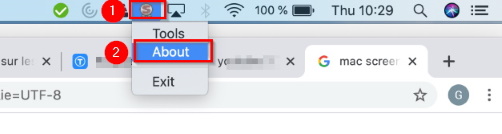 |
| Check the version | 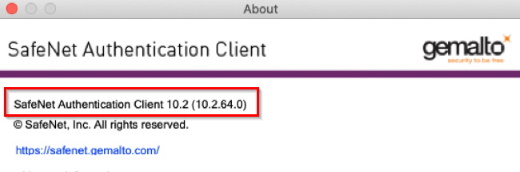 |
Remove Safenet Authentication Client older version
| close the app, (2) by clicking on exit Exit | 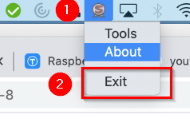 |
| send the app to the Trash - (1) Open Mac OS finder - (2) In Applications search for safenet and Move to trash | 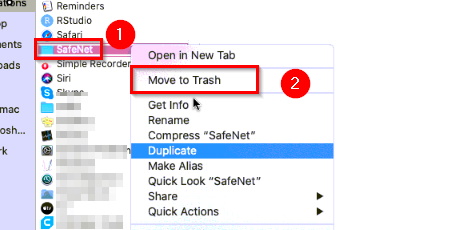 |
Resetting the Pincode
| Start the Safenet Tools | 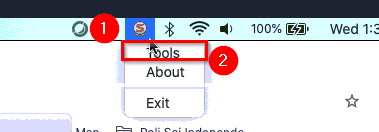 |
| Once Safenet Tools is open, (2) click on Unlock Token | 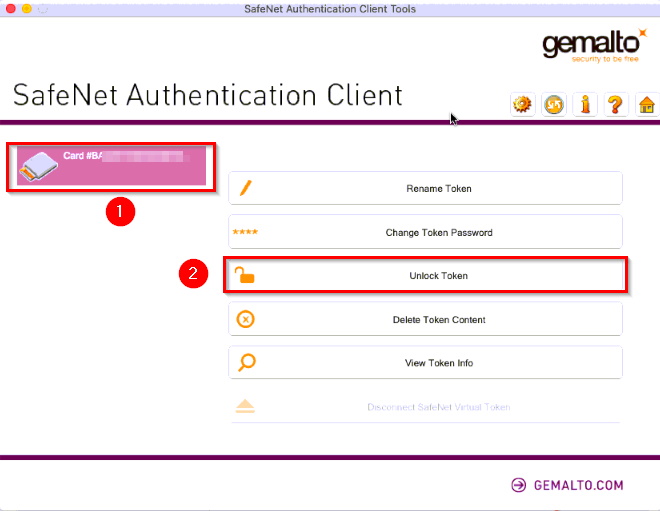 |
| Give Challenge code to Support / PSIRT/ CAM team, Challenge code is regenerated and different every time | 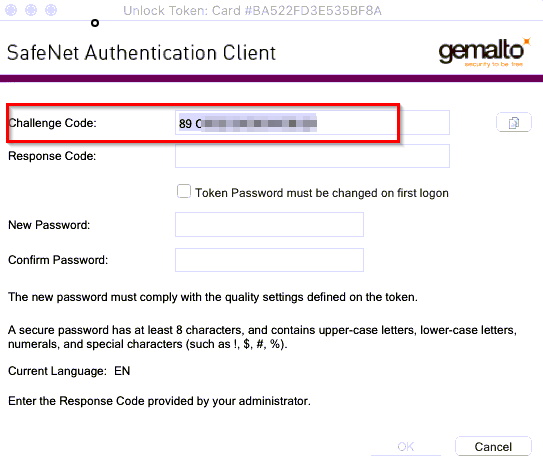 |
| After Response code has been generated, Support / PSIRT CAM team give it to user - (1) User enter it in Safenet toolsas shown below - (2) User have to enter a new pincode and confirm (minimum size of 5 digits) | 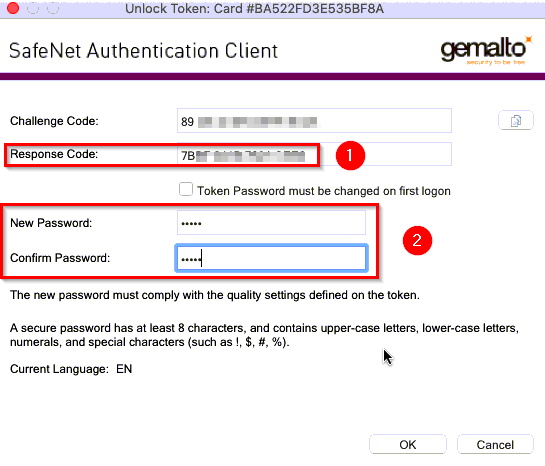 |
Once done, User can login to MobiOffice.