Common smartcard issues
Physical issues
Smartcard reader
The smartcard component is very tricky and sensitive, ensure to :
- Have a smartcard reader fully fonctionnal
- the small SCR 3500 C - USB Type C is very fragile when open. For transport, ensure it's fully closed.
- Have a functionnal smartcard and AD account enabled,
- that it had effectively be tested on standard BNP Paribas device
- it will fail to authenticate you, if
- your smartcard is locked(failing multiple time to enter pin code, can block it)
- your certificates had expired
- your smartcard is revoked
- your account is locked, as the asociation "smartcard + AD account" do not work anymore
- Some issues can be resolved, if the led is not blinking, for example
- disconnecting the smartcard reader and reconnect it to another USB port
Software issues with smartcard
Best browser tool to use with MobiOffice
| Name | Use/Not use | Comment | |
|---|---|---|---|
 |
Firefox |  |
Please, DO NOT USE firefox to connect to MobiOffice web portal |
 |
Microsoft Edge |  |
|
 |
Microsoft Internet Explorer | |
|
 |
Google Chrome | |
On macOS, it's the best choice |
 |
Apple Safari | |
you can use it, but prefer Chrome |
"Can't reach this page"
If, when trying to access the MobiOffice web portal the webpage is failing with this message
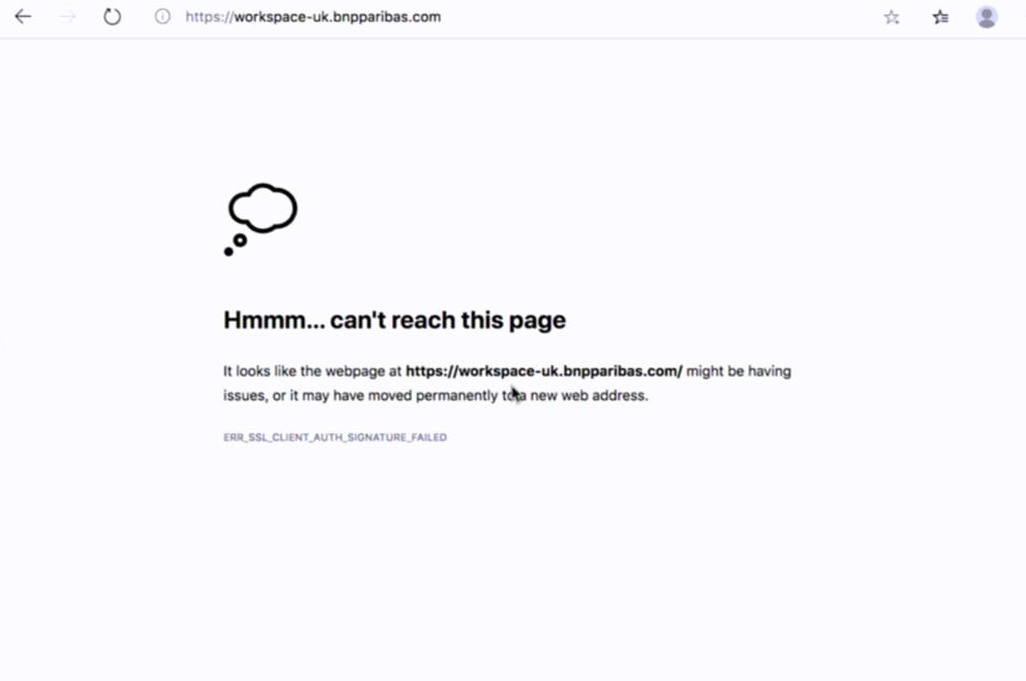
it's certainly because your smarcard is locked, to confirm it:
| On MacOS, you must use the Safenet tool | 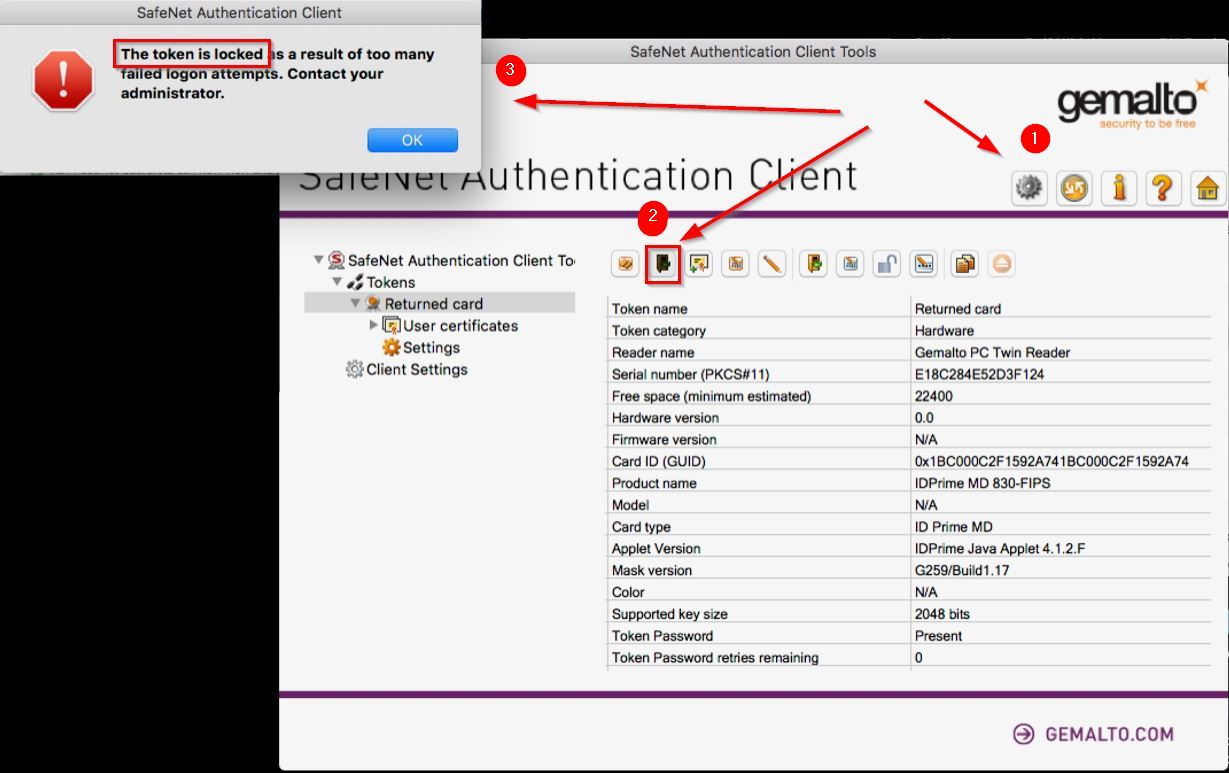 |
| On Windows, the smartcard popup will tell you | 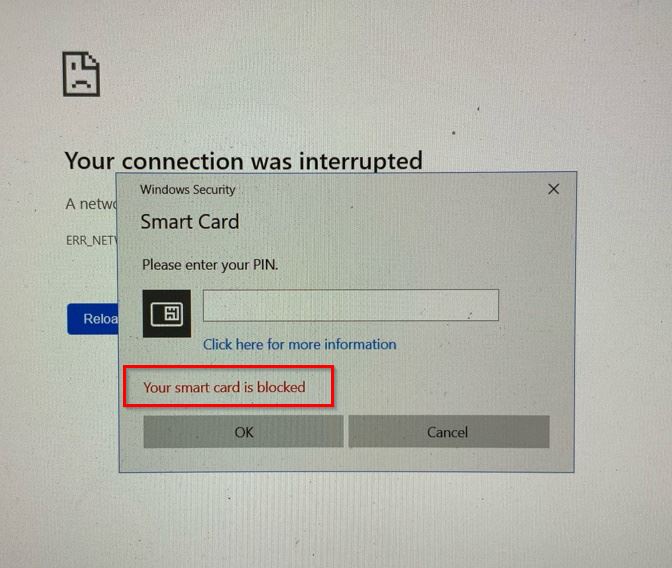 |
Error
If your smartcard is locked, contact your support desktop!
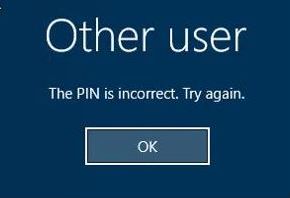
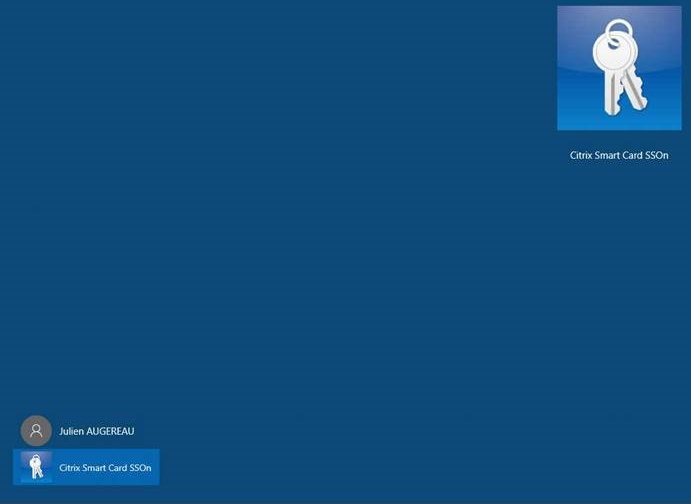
"The PIN is incorrect" & "Citrix Smart Card SSOn"
once connected to the HVD the pin code is refused, or you can't enter the pin code.
| The PIN is incorrect | Citrix Smart Card SSOn |
|---|---|
 |
 |
- check the keyboard in the HVD is the correct one.
- in some rare case , support must operate an action on the HVD
- In the HVD local disk
1 | |
in any case if the smartcard seems not to be recognized
Actions to unblock the smartcard
- Close the browser
- Close it completely, not only the web page, FULL CLOSE.
- On macOS, ensure the app is not in the menu bar, end exit the app.
- Remove the smartcard from the reader
- Disconnect the smartcard reader
- Reconnect the smartcard reader to the USB port
- Insert the smartcard, and wait it stop blinking
- Launch again the browser and go to the MobiOffice webportal
 macOS specific cases
macOS machine can have specific issue, some can be weird...
due to the Antivirus
-
everything is correctly installed, and you are still rerouted to hthe "deny/F.A.Q" webpage, again and again
-
if you have an antivirus installed on the mac:
- close/exit chrome/safari
- remove the smartcard from the reader
- try disabling the Anti-Virus
- start chrome/safari
- connect to the mobioffice web portal
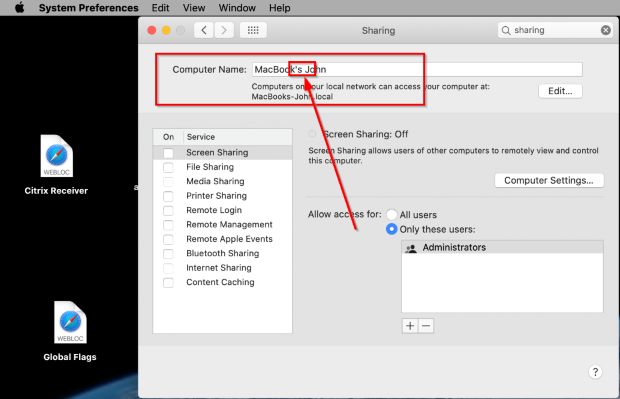
due to the machine name (seriously...)
This smart card could not be used.
This smart card could not be used. Additional details may be available in system event log. please report this error to your administrator.

- in the event log the support team will find
An error occurred while retrieving a digital certificate from the inserted smart card. The filename, directory name, or volume label syntax is incorrect.
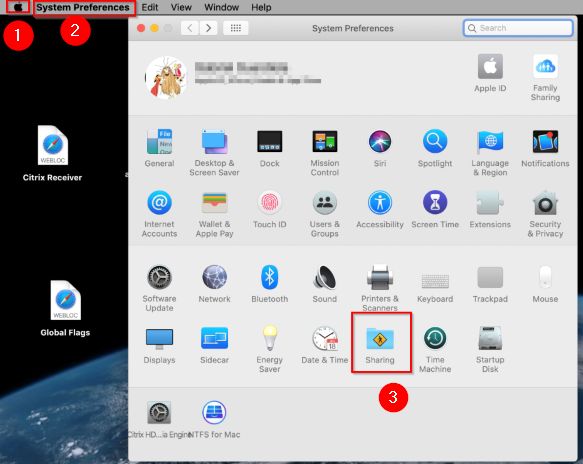
- to resolve this, you need to rename the mac machine name
- Apple menu > System Preferences > Sharing
-
when renaming the machine, please use:
- no space
- no special/cyrilic/asiatic/etc character
- only latin character
-
example
- "Dan's mac" -> "Danmac"
-
Please reboot the mac after the renaming it